
1. Log into your cPanel account.
2. In the "Files" section, click on "File Manager" icon. 
3. Click on "Settings" in the top right. 
4. A small window will prompt you to select a domain or folder location. Should you have a number of domains or addons, select the appropriate domain name or folder location, check "Show hidden files" and click "Save". 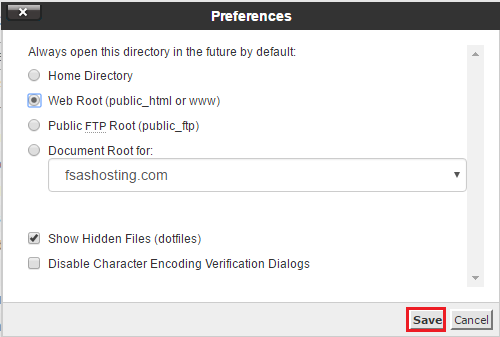
5. Navigate to the directory where your file is located.
6. Right click on the file and then on "Edit" or "Code Edit" in the Context Menu. 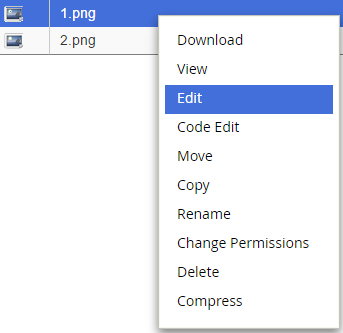
7. If the small "Code Editor" window is open, click on the "Edit" button, which will open a new window with options you can edit. 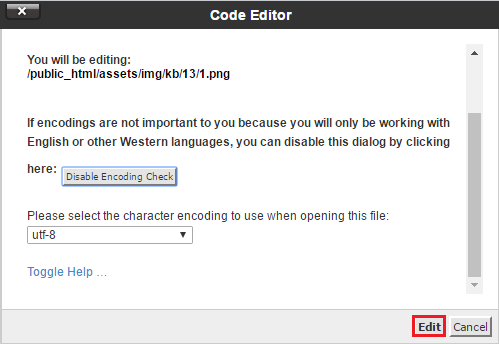
8. Make changes to your file and then click on the "Save Changes" button. 
- 0 Users Found This Useful
Related Articles
Powered by WHMCompleteSolution