
1. Log into your cPanel account.
2. In the "Files" section, click on "File Manager" icon. 
3. Click "Settings" in the top right. 
4. Select your preferences and ensure you check "Show hidden files (dotfiles)" so your .htaccess file is visible.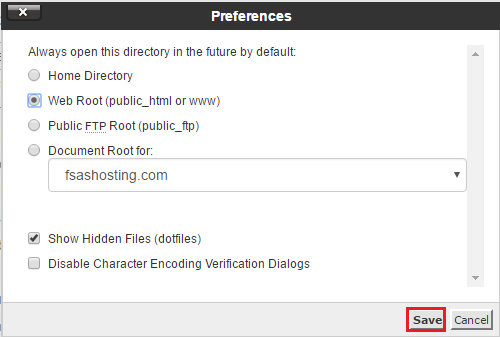
5. Navigate to the directory where your .htaccess file is located. If you want to edit the .htaccess file of your root directory, navigate to the public_html folder.
6. Right click on the .htaccess file and then on "Edit" or "Code Edit" in the Context Menu.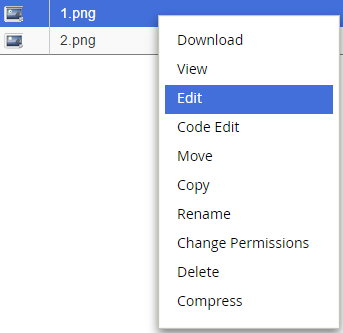
7. If the small "Code Editor" window is open, click on the "Edit" button, which will open a new window with options you can edit.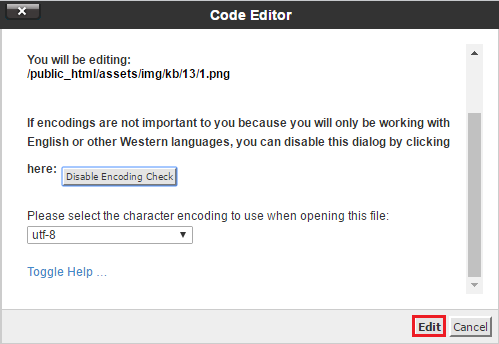
8. Make changes to your .htaccess file and then click on the "Save" button. 
- 0 Utilisateurs l'ont trouvée utile
Articles connexes
Powered by WHMCompleteSolution